
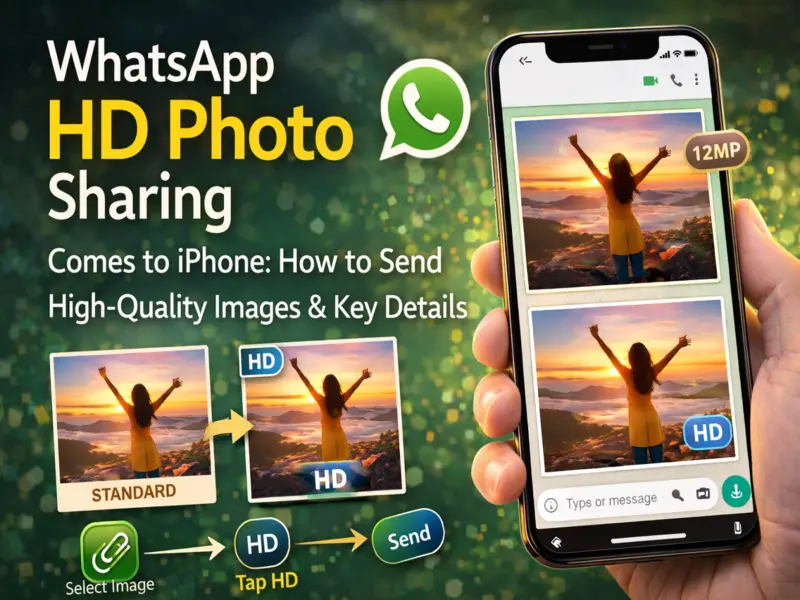

WhatsApp has expanded its HD photo sharing feature to iPhone users, allowing them to send clearer and more detailed images in chats. The feature was initially introduced for Android devices and is now gradually rolling out to iOS users as well.
Earlier, photos sent through WhatsApp were heavily compressed to reduce file size and speed up delivery. While this helped save data and storage, it often resulted in reduced image clarity. With the latest update, users can now share photos in high-definition quality, preserving more details compared to the standard compression method.
The new feature gives users better control over how images are shared, especially when photo clarity is important. Whether it's travel photos, professional images, or family moments, sending HD photos ensures that recipients can view the pictures with better quality.
If you are an iPhone user and want to share HD photos through WhatsApp, here's everything you need to know along with the steps to use the feature.
What Is WhatsApp's HD Photo Sharing Feature?
The HD photo sharing feature allows WhatsApp users to send images with higher resolution and improved visual quality. Even though the platform still compresses media slightly, the new option significantly improves clarity compared to the earlier default setting.
The feature maintains end-to-end encryption, ensuring that images remain private between the sender and the recipient.
However, there are certain limitations to keep in mind when using HD photo sharing on WhatsApp.
Important Things to Know About HD Photos on WhatsApp
Before sending HD images on WhatsApp, here are a few important details to remember:
Maximum Resolution Limit
HD photos can support a maximum resolution of approximately 12 megapixels. If a photo has a higher resolution, WhatsApp will resize it to around 4000 × 3000 pixels before sending.
Single Toggle for Multiple Images
If you are sending multiple images at once, you only need to enable the HD option once, and the selected quality will apply to all the images in that batch.
Works With WhatsApp Camera
The HD feature is compatible with both photos selected from the phone gallery and images captured using the built-in WhatsApp camera.
Resolution Requirement
The HD toggle will only appear for photos that have a resolution close to 4000 × 3000 pixels. If the image resolution is lower than that, the HD option may not be available.
Gradual Rollout
The feature is being rolled out gradually, which means some users may receive it later than others. Updating WhatsApp to the latest version from the Apple App Store ensures you get the feature sooner.
How to Send HD Photos on WhatsApp Using iPhone
Follow these steps to share high-quality photos through WhatsApp on your iPhone.
Step 1: Open WhatsApp Chat
Launch the WhatsApp application on your iPhone and open the chat where you want to send the photo. This can be either an individual chat or a group conversation.
Step 2: Select or Capture a Photo
Tap the attachment icon or camera icon inside the chat.
You can either:
Choose an image from your photo gallery
Capture a new photo using the WhatsApp camera
Step 3: Tap the HD Option
After selecting the image, the preview screen will appear.
Look for the HD icon displayed at the top of the screen and tap on it.
Step 4: Choose HD Quality
A small pop-up window will appear showing the available quality options.
Select HD quality to enable high-definition image sharing.
Step 5: Send the Image
Once the HD option is enabled, tap Send to share the photo in high resolution.
The image will appear in the chat with a small HD label, indicating that it was sent in high quality.
Storage and Data Considerations
Because HD photos contain more details, they typically require larger file sizes compared to standard images. This means they may take slightly longer to upload or download, especially on slower internet connections.
Users who want to manage storage and data usage can adjust auto-download settings in WhatsApp.
Steps to check storage settings:
Open WhatsApp Settings
Tap Storage and Data
Manage auto-download preferences for photos, videos, audio, and documents
This helps users control how media is downloaded on mobile data, Wi-Fi, or roaming.
The introduction of HD photo sharing on iPhone significantly improves the media-sharing experience on WhatsApp. By allowing users to choose between standard and high-quality images, WhatsApp gives users greater flexibility depending on their needs.
For users who frequently share photos with friends, family, or colleagues, the HD photo option ensures that images retain more detail and clarity while still maintaining the platform's strong privacy protections.