

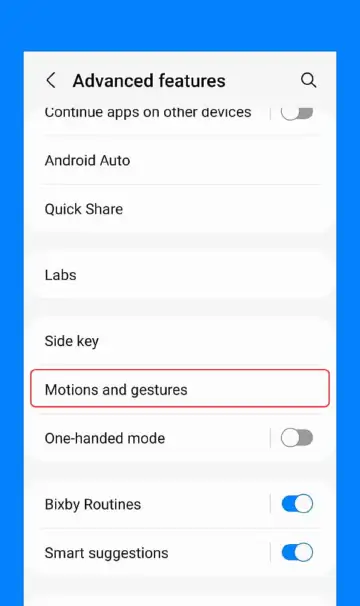
Samsung Settings Menu (One UI 6.1) : The magic happens with screenshot gestures in the Settings menu under Advanced features and Motions and gestures
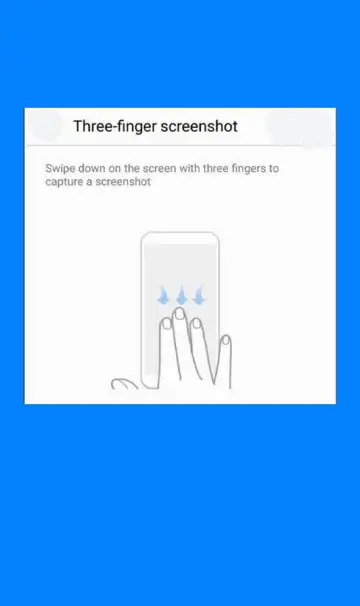
Toggling the 3-Finger Screenshot : Enable the "Swipe with three fingers to take screenshots" option. If that's not available, your model might need Good Lock
Using Good Lock to Enable Gesture : Download Good Lock > Install the "RegiStar" module, > enable the screenshot gesture if it's not available in the default settings
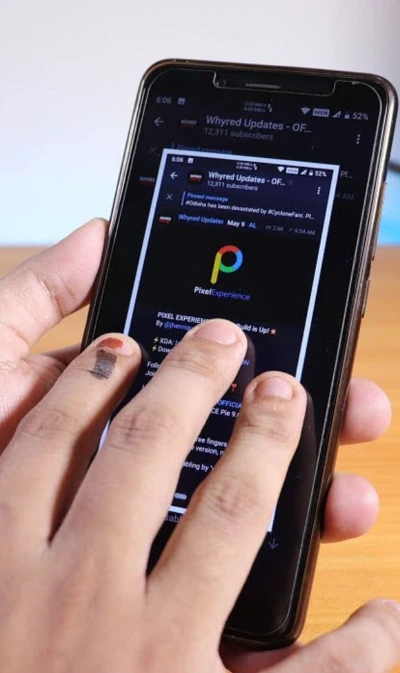
Gesture on the screen : Simply swipe down with three fingers on any screen. It captures instantaneously-no need for the volume + power button
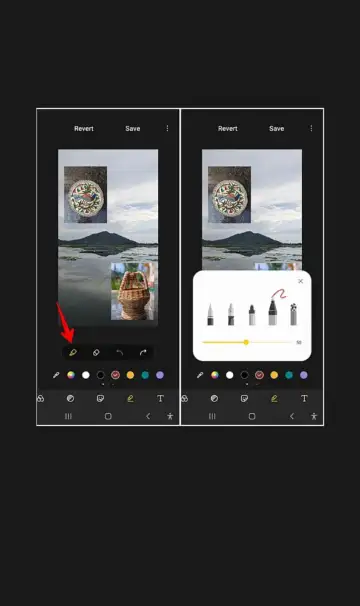
Editing & Sharing Right After Screenshot : Samsung allows you to crop, draw, or share the screenshot immediately from the Smart Capture toolbar
Join our WhatsApp Channel to get the latest news, exclusives and videos on WhatsApp