





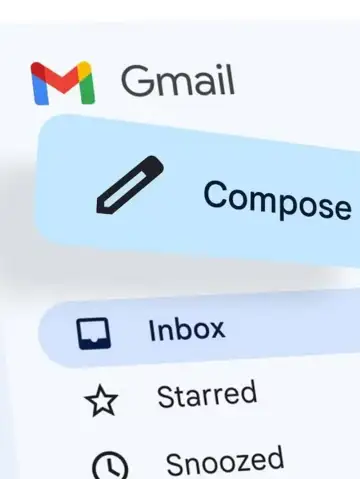
Open Gmail and click Compose to start your new email.
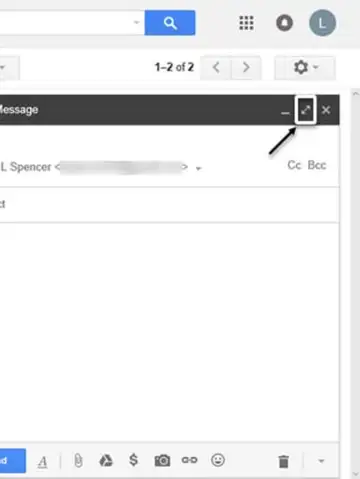
Type your recipient, subject, and email body as usual.
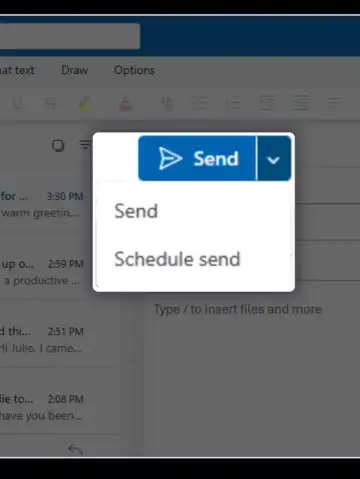
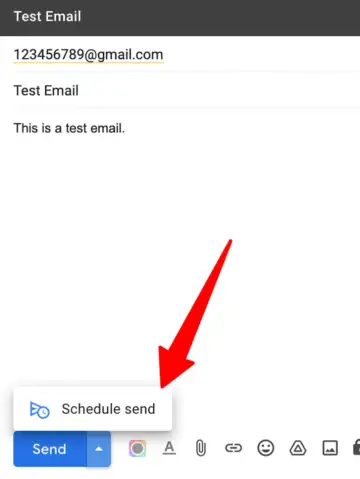
On desktop, click the arrow next to Send to open scheduling options.
On mobile, tap the three-dot menu near the Send button.
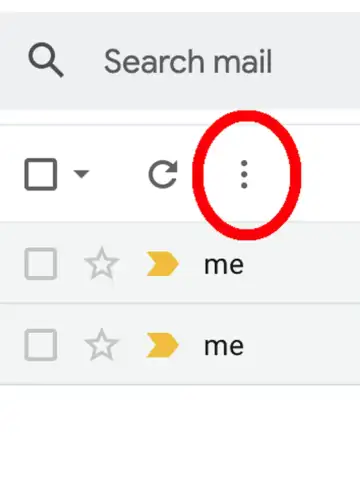
Choose "Schedule send" from the drop-down menu.
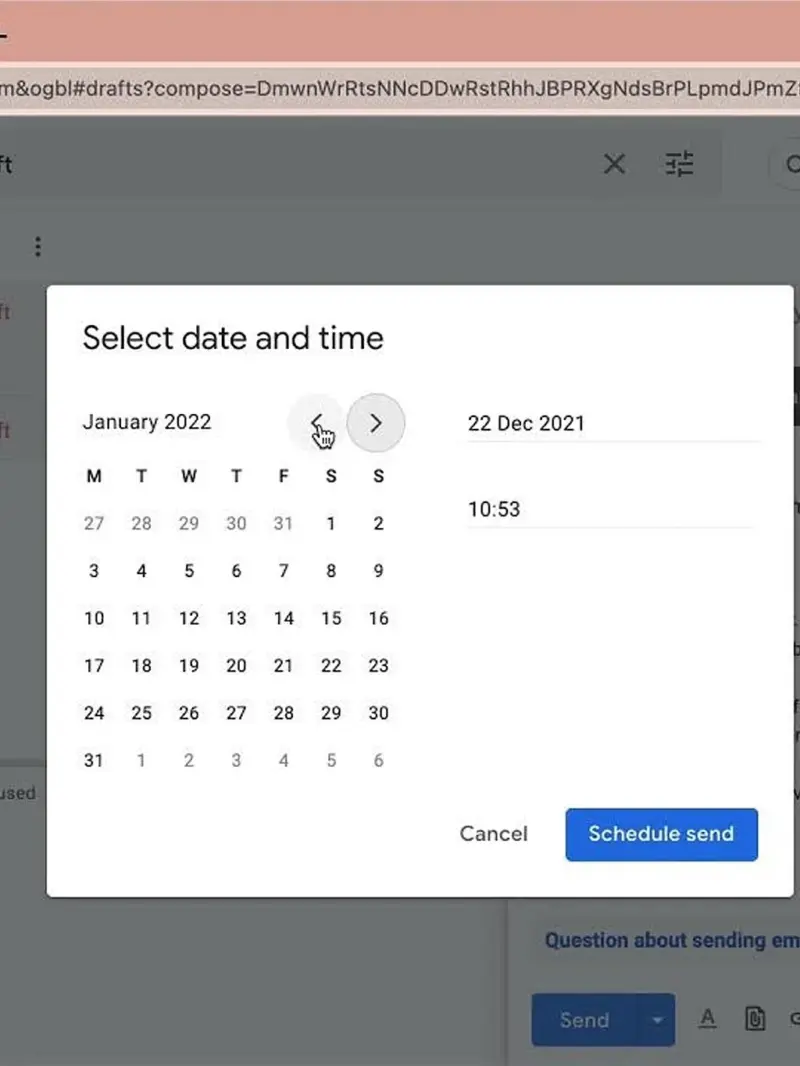
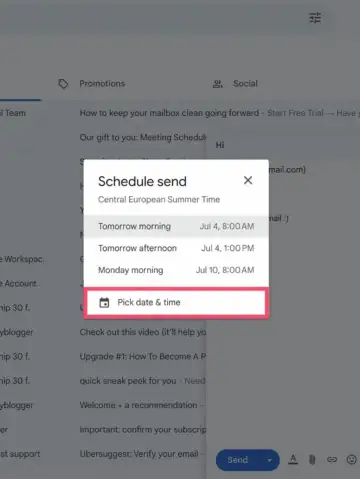
Select a default option or tap "Pick date & time" to customize.
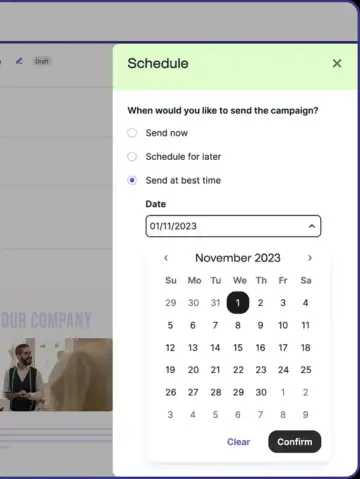
Tap "Schedule send" to confirm and queue the message.
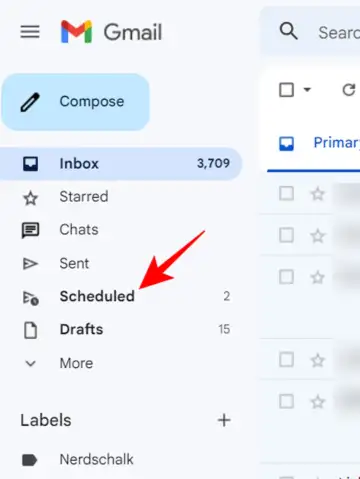
Find your scheduled emails in the Scheduled folder on the sidebar.
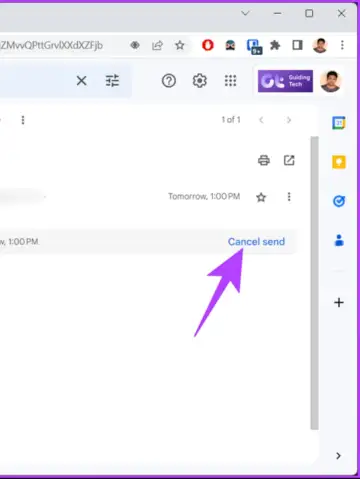
To cancel or edit, open the email and click "Cancel send."
 Stories