
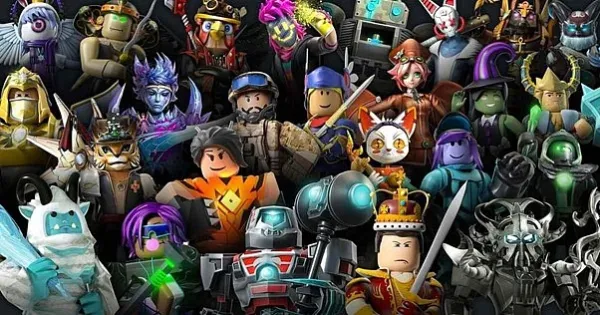

Roblox is an online gaming universe with infinite possibilities, where people can enjoy user-generated games and share the playing experience with friends.
It is a gaming metaverse with a massive user base.
Primarily designed for mobile devices, players are now shifting to PC gameplay for better experiences. That gives them more control, a big screen, and better performance.
If you are searching for a reliable and smooth Android emulator for it, MuMuPlayercan significantly improve the Roblox experience. In this post, we will guide you on how to play Roblox on your PC using MuMuPlayer and why it is the top choice for gamers in 2025.
Why Play Roblox on PC with an Emulator?
Playing Roblox on a mobile device is convenient, but it has limitations. Performance issues, small screen sizes, battery drain, and touch controls often impact gameplay. This becomes unacceptable in competitive games.
Here's why many gamers prefer emulators:
Larger screen & high resolution
Keyboard and mouse support for better control
No overheating or battery drainage
Smoother performance with higher frame rates
MuMuPlayer is quickly emerging as one of the best Android emulators to run Roblox and other mobile games on PC. It has optimal speed, a lightweight design, and optimization features.
What is MuMuPlayer Emulator?
MuMuPlayer is a free Android emulator developed by NetEase. It's known for its clean UI, low system resource consumption, and high compatibility with mobile games.
Unlike heavier alternatives, MuMuPlayer is designed to deliver a smooth, lag-free gaming experience, even on mid-range PCs.
MuMuPlayer Key Features:
Custom key mapping for Roblox
Multi-instance support (play multiple games at once)
Smart controls and gamepad support
Support for 120 FPS for compatible games
They keep bringing new features and enhancements to their emulator system for a next-level gaming experience. It works on both Android and iOS devices.
How to Play Roblox on PC Using MuMuPlayer: Step-by-Step
This step-by-step guide will give you a complete understanding of playing Roblox on PC using the MuMuPlayer emulator. Follow each step carefully and enjoy your favourite game.
Step 1: Download MuMuPlayer Emulator
Go to the officialMuMuPlayerwebsite and download the latest version for Windows or macOS.
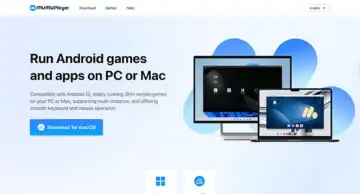
Step 2: Install the Emulator
Run the installer and follow the on-screen instructions. The installation usually takes just a few minutes.
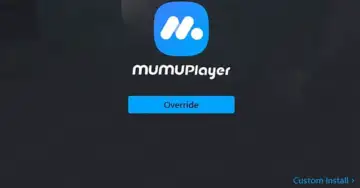
Step 3: Set Up MuMuPlayer
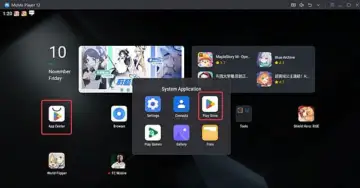
Launch MuMuPlayer and sign in using your Google account. This is required to access the Google Play Store.
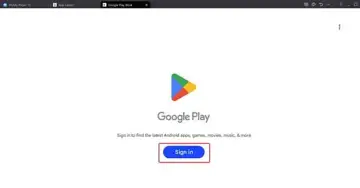
Step 4: Install Roblox
Open the Play Store within MuMuPlayer, search for Roblox, and install it just like you would on a phone.
Step 5: Customize Controls
Go to the key mapping settings to customize your controls. You can assign keys for movement, camera control, and in-game actions for optimal performance.
Step 6: Launch and Play
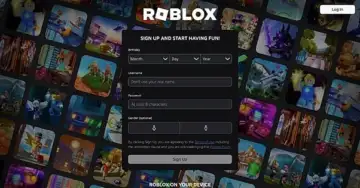
Open Roblox, log in to your account and start exploring or building in your favorite Roblox games on a bigger screen and with smoother controls.
Pricing: MuMuPlayer gives
Tips to Optimize Roblox Gameplay on MuMuPlayer
The right PC settings are necessary to optimize Roblox gameplay on MuMuPlayer. Here are some tips for gamers to play it the right way.
Allocate more RAM and CPU cores to the emulator via settings for faster performance.
Set the resolution to 1080p or higher for a visually immersive experience.
Use a wired internet for reduced latency during multiplayer sessions.
Keep MuMuPlayer updated to benefit from the latest compatibility improvements.
Frequently Asked Questions
Can You Play Roblox On MuMuPlayer?
Yes, you can play Roblox on MuMuPlayer along with other popular games. It can be directly downloaded within the emulator or through a separate file. Just make sure you have the compatible MuMuPlayer version installed on your PC.
Can I Play Roblox Without Downloading It?
No, you can't play Roblox without downloading it. However, some cloud gaming platforms provide this option through a web browser.
What Is The Best Platform To Play Roblox?
If you are looking for casual gameplay, mobile devices can be good. However, for serious gaming, PC access through an emulator like MuMuPlayer would be the best option.
Final Thoughts
Playing Roblox on PC with MuMuPlayer enriches the experience. Be it adrenaline-driven obstacle courses or tycoon simulators; the combination generates a whole new user-driven role-playing world.
This empowerment of the mobile vantage point, coupled with the raw power of the silver-screen, is how MuMuPlayer allows you to enjoy Roblox as it should be. Play Roblox on PCor Mac and become a part of elite PC gamers.