






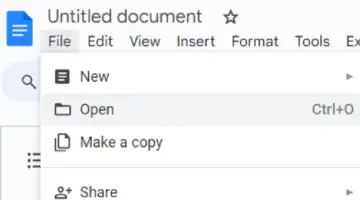
Open Google Docs: Start by opening a new or existing document on your desktop.
Image > Generate an Image: Click Insert > Image > Generate an image to activate Gemini's panel on the right." src="https://media.assettype.com/analyticsinsight/2025-05-27/4555yyv9/Insert-Image-Generate-an-Image-Click-Insert-Image-Generate-an-image-to-activate-Geminis-panel-on-the-right.jpg" />Insert > Image > Generate an Image: Click Insert > Image > Generate an image to activate Gemini's panel on the right.
Write a Detailed Prompt: Describe your image clearly-mention the subject, style, and mood. E.g., "A snowy mountain under a full moon."
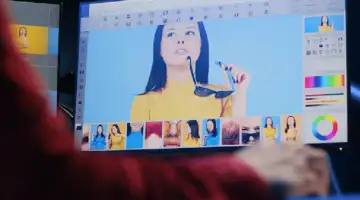
Pick Style and Format: Choose from photorealistic, watercolor, or cartoon. Select the format: square, wide, or tall.

Click Create: Gemini will show 4 options based on your prompt. Need more? Click View more for extra choices.

Insert & Adjust Image: Click your favorite image to insert it. Resize or move it to match your document layout.
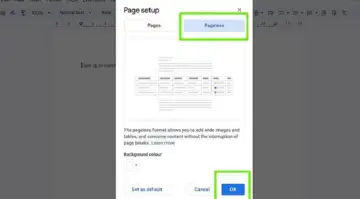
Generate Cover Image in Pageless Mode: Switch to Pageless view to add a full-bleed cover image using the same prompt-based method.