
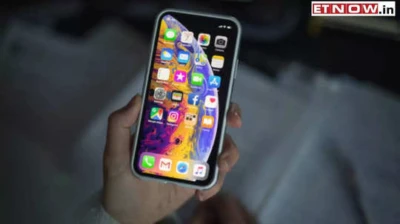

IOS 18 introduces robust features to boost privacy and security on your iPhone. A key addition is the ability to lock and hide apps, which helps protect your personal information from unauthorized access.
Here are the steps:
- Configure Access Settings: Get your iPhone's "Settings" app open.
- Find Security & Privacy: After swiping down, select "Privacy & Security."
- Choose App Lock: The "App Lock" option may be found in the Privacy & Security menu. Give it a tap.
- Enable App Lock: Turn on this functionality by flipping the "App Lock" switch.
- After selecting Apps to Lock, a list of installed apps will appear. Choose the apps you wish to lock.
- Create a Password: You'll be asked to create a secure password or to authenticate using Touch ID or Face ID.
In iOS 18, use the following actions to unlock and unhide apps:
- To access settings, launch the iPhone's "Settings" app.
- Find Privacy & Security by tapping on it after scrolling down.
- Disable App Lock: To disable this function, turn off the "App Lock" option.
- All previously locked apps will become unlocked and viewable on your home screen or in the App Library once you disable App Lock.
Additional tips:
- Use a complicated password or activate biometric authentication for increased security.
- Just slide left to open the App Library and delete closed apps from your directories in order to conceal them from the home screen.