





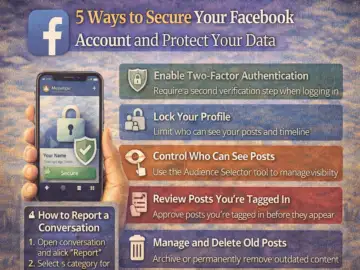
In today's digital world, a large part of our daily communication, memories, and personal information exists online. Social media platforms like Facebook help us stay connected with friends, family, and colleagues, but they also bring potential risks such as hacking, identity theft, and data misuse.
With growing cyber threats, protecting your social media accounts has become extremely important. By following a few simple security practices, users can significantly reduce the chances of unauthorized access to their accounts.
Here are five practical ways to secure your Facebook account and protect your personal data.
1. Enable Two-Factor Authentication (2FA)
One of the most effective ways to secure your account is by turning on two-factor authentication (2FA). This feature adds an extra layer of protection by requiring a second verification step when you log in.
How to enable it:
- Open Settings on Facebook.
- Go to Security and Login.
- Select Use Two-Factor Authentication.
- Click Edit, enable the feature, and confirm.
Once enabled, Facebook will send a verification code to your phone or authentication app whenever someone tries to log in. Even if someone knows your password, they will not be able to access your account without the second verification step.
You can also activate alerts for unrecognized logins, which notify you when your account is accessed from a new device or location.
2. Lock Your Facebook Profile
Facebook offers a Profile Lock feature that helps limit what non-friends can see on your profile.
When your profile is locked:
- Only friends can view your posts and photos.
- Timeline details are restricted from public users.
- Profile information becomes less visible to strangers.
How to lock your profile:
- Open the Facebook mobile app.
- Go to your profile page.
- Tap the three-dot menu next to "Add to Story."
- Select Lock Profile and confirm.
This feature is particularly helpful for users who want to maintain greater privacy on their accounts.
3. Control Who Can See Your Posts
Whenever you post something on Facebook, you can control who sees it by using the Audience Selector tool.
This allows you to choose from options such as:
- Public - anyone can see your post
- Friends - only your friends can see it
- Custom audience - selected people can view it
The audience selector appears below your name when creating a post. By adjusting this setting, you can ensure that sensitive content is shared only with the people you trust.
4. Review Posts You're Tagged In
Sometimes friends may tag you in posts or photos that you may not want displayed on your timeline. Facebook offers a Timeline Review feature that lets you approve or reject such posts before they appear publicly.
To enable Timeline Review:
- Go to Settings.
- Click Timeline and Tagging.
- Find Review posts that friends tag you in before they appear on your timeline.
- Select Edit and enable the feature.
This setting gives you full control over what appears on your profile.
5. Manage and Clean Up Old Posts
Over time, users may share posts that they later prefer to remove or hide. Facebook's Manage Activity feature allows you to archive or delete old content quickly.
With this feature you can:
- Archive posts so they are hidden from your timeline
- Move posts to trash for permanent deletion
Posts placed in the trash remain there for 30 days before being permanently removed, unless you delete them earlier.
This tool is useful for people who want to clean up their digital footprint, especially when applying for jobs or updating their online presence.
As social media becomes a major part of everyday life, safeguarding your online accounts is more important than ever. By enabling security features like two-factor authentication, profile locking, and timeline review, users can protect their personal information and reduce the risk of unauthorized access.
Taking a few minutes to adjust your privacy and security settings on Facebook can go a long way in keeping your data safe in the digital world.