
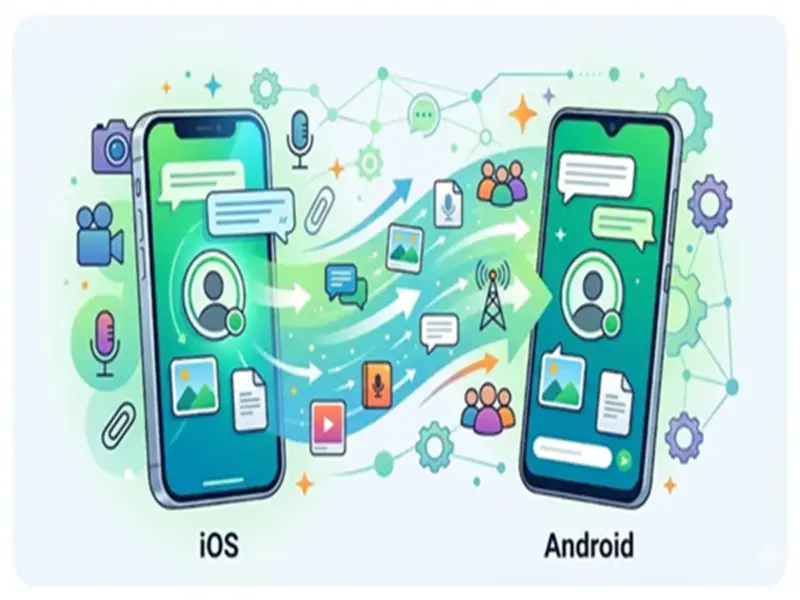

Switching phones-especially between the iOS and Android ecosystems-is often a hassle. The biggest headache is usually ensuring that your WhatsApp account migrates correctly without any data loss.
Although WhatsApp for iOS does include a built-in tool for transferring chats, there have been numerous instances where certain conversations or media files were lost during the migration process. To resolve this issue, users often have to resort to workarounds or third-party tools. However, WhatsApp has now announced a feature that allows you to easily transfer your chats from one platform to another. With this tool, users can move their conversations, photos, and videos from one operating system to another.
This feature is designed to simplify the chat transfer process. It eliminates the need for users to start their chats from scratch; instead, they can pick up their conversations exactly where they left off. In just a few simple steps, your entire WhatsApp chat history is transferred to your new phone whenever you switch devices.
WhatsApp Cross-Platform Chat Transfer
WhatsApp's new cross-platform migration feature enables users to transfer their chat history, media files, voice notes, documents, WhatsApp Channels, and Communities from an iPhone to an Android device. This instant messaging app-owned by Meta-assures users that their important conversations and shared contacts will remain secure even after switching phones.
The chat transfer process takes place directly between the two phones, typically utilizing a cable or a local Wi-Fi connection. This means that your data does not pass through any cloud servers during the transfer. WhatsApp also states that it cannot view or access the data being transferred. However, if you have previously backed up your chats to iCloud, a separate copy of them may still exist there.
The time required to transfer chats depends on the amount of data being transferred. If you have an extensive chat history, this process may take longer. It is crucial to note that you can only transfer your chats if you have not yet activated WhatsApp on your new Android phone. If you have already set up WhatsApp, you will need to uninstall and then reinstall the app to transfer your chats.
This feature also has certain limitations. First, you cannot merge your old chats with your new chats on your Android phone. Furthermore, you currently cannot transfer your chats to a different phone number. To do so, you must first change your phone number on your old phone. Additionally, when transferring chats, WhatsApp Business chats, status updates, and peer-to-peer payment messages are not transferred.
According to WhatsApp, your data will remain securely stored on your old iPhone until you manually delete the data from your old iPhone or uninstall WhatsApp after the chat transfer is complete.
How to Transfer WhatsApp Chats from iPhone to Android?
Follow these steps to transfer your WhatsApp data from your old iPhone to your new Android phone:
Open WhatsApp on your iPhone and go to Chats > Transfer chat history > Transfer to Android.
Once the preparation is complete, tap Continue.
If prompted, tap Allow to grant camera access. Ensure that you keep your iPhone unlocked during the transfer.
Switch to your Android device. Open WhatsApp and verify your account using the same phone number you used on your iPhone.
When prompted to connect your devices, tap Allow. Use your iPhone's camera to scan the QR code.
When prompted, tap Join to connect to the Wi-Fi network and begin the transfer.
Once the process is complete, tap Next on your Android device to view your chats. You can now start using WhatsApp on your new Android phone.
Disclaimer: This content has been sourced and edited from Dainik Jagran. While we have made modifications for clarity and presentation, the original content belongs to its respective authors and website. We do not claim ownership of the content.