




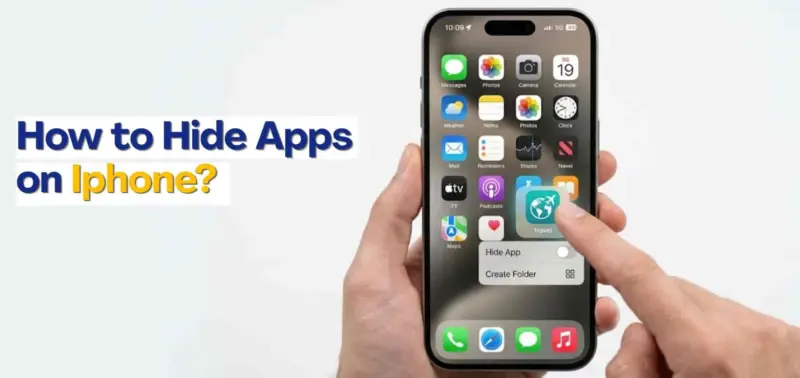

How to Hide Apps on Iphone: A Complete Guide: By Ritika Tyagi
Privacy matters more than ever, especially when our smartphones hold everything from banking apps and personal photos to social media accounts and private conversations.
That is why many users search for ways to learn how to hide apps on iPhone without deleting them completely.
Whether you want to keep certain apps away from prying eyes, organise your Home Screen, or create a cleaner digital space, Apple offers several built-in options to help.
From removing apps from the Home Screen to using Face ID protection and managing visibility through settings, there are multiple ways to secure your apps.
This complete guide explains every important method in a simple and practical way.
How to Hide Apps from Home Screen
One of the simplest ways to hide apps on iPhone is by removing them from the Home Screen without deleting them.
This helps reduce clutter while keeping apps accessible when needed.Remove Apps From the Home ScreenApple lets users hide apps from view while keeping them available in the App Library.Follow these steps:Press and hold the app iconTap Remove AppSelect Remove from Home ScreenThe app will disappear from the Home Screen but stay installed on the device.Use the App Library for Better OrganisationThe App Library automatically organises all installed apps into categories.
Even after removal from the Home Screen, apps remain accessible here.To open the App Library:Swipe left through all Home Screen pagesUse the search bar at the topTap the app to open itThis is one of the easiest ways to learn how to hide app in iPhone settings without affecting app functionality.Hide Entire App PagesIf you want to hide multiple apps together, you can hide an entire Home Screen page.Here is how:Press and hold an empty area on the Home ScreenTap the page dots at the bottomUntick the page you want to hideTap DoneThe apps stay installed but disappear from your main screen layout.Place Apps Inside FoldersYou can also make apps less visible by placing them inside folders.For example:Create a folder with regular appsMove private apps to the second or third folder pageRename the folder something generic like "Utilities"Although not a full security feature, this method works well for casual privacy and cleaner iPhone customisation.Also Read: A Complete Guide for iOS Users: How to Enable Dark Mode on iPhone or iPad
How to Lock and Hide Apps With Face ID
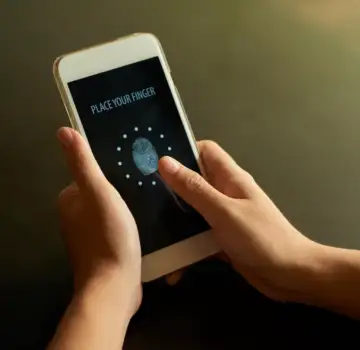
Apple has introduced stronger privacy features in newer iOS versions, making it easier to both lock apps on iPhone and hide sensitive content.Use Face ID to Lock AppsSome iPhone apps now support Face ID protection directly through iOS, preventing unauthorised access.To enable it:Press and hold the app iconTap Require Face IDConfirm the settingOnce enabled, the app will require Face ID authentication before opening.This is useful for:Banking appsNotesMessaging appsPayment appsPersonal photo appsHide and Lock Apps TogetherSupported iOS versions also allow users to hide apps inside a Face ID-protected hidden folder.To hide an app:Press and hold the app iconSelect Require Face IDTap Hide and Require Face IDThe app moves to the hidden apps folder inside the App Library, offering stronger privacy than regular folders.Hide Apps From Search and Siri SuggestionsHidden apps may still appear in Spotlight Search or Siri Suggestions.
You can disable this visibility through settings.Follow these steps:Open SettingsTap Siri & SearchSelect the appYou can then turn off:Show App in SearchShow Content in SearchSuggest AppSuggest NotificationsThis stops apps from appearing in searches, suggestions, and lock screen recommendations.Use Screen Time RestrictionsAnother useful option is Screen Time iPhone settings.Apple's Apple Screen Time feature allows users to restrict app access and hide certain built-in apps.To enable restrictions:Open SettingsTap Screen TimeSelect Content & Privacy RestrictionsTurn restrictions onYou can then:Hide built-in appsRestrict downloadsLimit age-rated appsBlock app categoriesThis feature works especially well for parental controls and shared devices.Hide Purchased Apps From App Store HistoryYou can also hide apps from your App Store purchase history.Here is how:Open the App StoreTap your profile iconGo to PurchasedSwipe left on the appTap HideThis prevents the app from appearing in visible purchase lists, including Family Sharing history.
Click to read more
www.justdial.com