
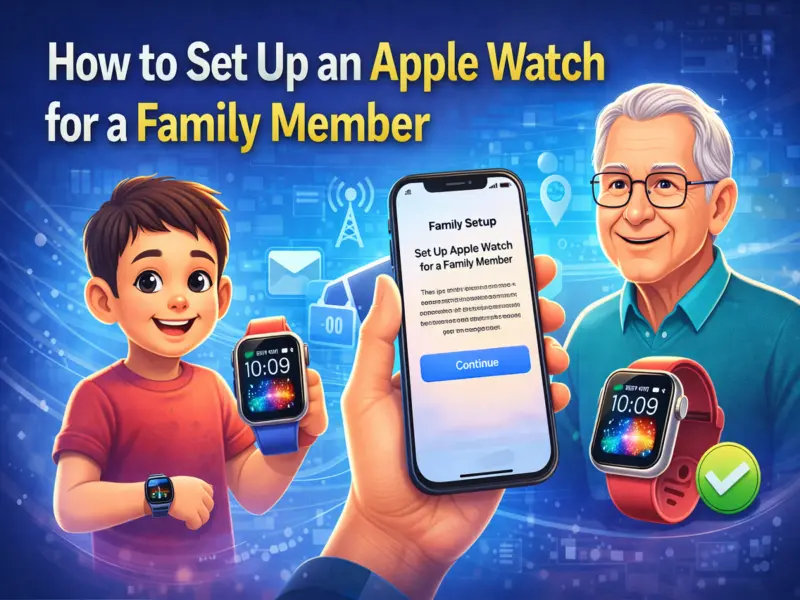

Apple has evolved beyond being just a personal smartwatch. With the introduction of the Family Setup feature, Apple allows users to configure an Apple for family members who may not own an iPhone.
This feature is particularly useful for children or elderly parents, enabling them to use many Apple features such as calling, messaging, location sharing, and activity tracking.
Family Setup allows a parent or guardian to pair an Apple with their own iPhone and manage its settings remotely. Once the watch is configured, the family member can use it independently while the organiser maintains certain controls like communication permissions and purchase approvals.
If you are planning to set up an Apple for a family member, here is a detailed guide explaining how the feature works and how to configure it properly.
What Is Apple Family Setup?
Family Setup is a feature designed by Apple to help family members use an Apple even if they don't own an iPhone. Using your iPhone, you can pair the watch, manage settings, and monitor certain activities of the family member.
After the watch is set up, the family member can:
- Make and receive phone calls
- Send and receive messages
- Share their location
- Track fitness and health activity
- Use various built-in Apple apps
However, some advanced Apple features may not be available because they require direct pairing with an individual iPhone.
Requirements Before Setting Up Apple for Family
Before you start the setup process, ensure that you have the following devices and settings ready:
Compatible Apple
- Apple Series 4 or newer with cellular support
- Apple SE with cellular
The watch must run watchOS 7 or later.
Compatible iPhone
- iPhone 6s or later
- Must run iOS 14 or later
Apple IDs
You need two Apple IDs:
- One for yourself (the organiser)
- One for the family member who will use the watch
Both Apple IDs must have two-factor authentication enabled.
Family Sharing Group
You must have a Family Sharing group set up on your Apple account.
Additionally, you must have the role of organiser or parent/guardian to configure the watch for another member.
Step-by-Step Guide to Set Up Apple for a Family Member
Step 1: Turn On the Apple
Press and hold the side button on the Apple until the Apple logo appears.
Step 2: Start the Setup Process
Bring the Apple near your iPhone.
A message will appear on your iPhone saying:
'Use your iPhone to set up this Apple .'
Tap Continue, then select Set Up for a Family Member.
Step 3: Pair the Apple with Your iPhone
Hold your iPhone over the animation displayed on the Apple screen.
Once the watch face is centred inside the camera frame, the devices will pair automatically.
If the camera pairing option doesn't work, choose Pair Apple Manually and follow the instructions shown.
Step 4: Accept Terms and Create a Passcode
Agree to Apple's Terms and Conditions, then select your preferred text size.
Next, create a passcode to keep the watch secure.
Step 5: Choose the Family Member
Select the family member who will use the Apple .
If the person does not appear in the list, tap Add Family Member and sign in using their Apple ID.
Step 6: Enable Ask to Buy (Optional)
Parents can enable the Ask to Buy feature to approve purchases or downloads made from the Apple .
This is especially helpful when setting up the watch for children.
Step 7: Configure Cellular and Wi-Fi
If your mobile network provider supports Family Setup, you can add the Apple to your cellular plan during this step.
This allows the watch to make calls and send messages even when the paired iPhone is not nearby.
Step 8: Enable Additional Apple Features
During the setup process, you can enable several Apple services, including:
- Location Services (Find My)
- Siri
- Health Data
- Emergency Contacts
- Medical ID
- Apple Cash Family
- Workout and activity tracking
- Photos syncing
These features help personalise the watch experience for the user.
Step 9: Set Up Contacts and Schooltime
Next, configure shared contacts that the Apple user will be able to communicate with.
To enable this feature:
- Open Settings on your iPhone
- Tap Your Name → iCloud
- Turn on Contacts
You can then select trusted contacts from your phone.
For children, you can also enable Schooltime, which limits watch usage during school hours.
Apple's Family Setup feature makes the Apple more versatile for families. By allowing parents or guardians to configure and manage a watch from their own iPhone, it becomes easier for children and elderly family members to stay connected and safe.
With features like location sharing, communication controls, and health tracking, Apple can serve as a powerful tool for family connectivity and safety.