





Sending emails to a large audience while keeping them personalized is a common challenge for businesses, marketers, and even professionals.
To simplify this process, Gmail offers a powerful feature called Multi-Send Mode, which allows you to send bulk emails efficiently without compromising personalization.
Here's a complete guide on how to enable and use this feature effectively.
What Is Gmail Multi-Send Mode?
Multi-Send Mode is designed for sending the same email to multiple recipients while maintaining a personalized feel. Instead of sending one email to everyone in a visible list, Gmail sends individual copies to each recipient.
This ensures:
- Privacy of recipients
- Personalized communication
- Efficient bulk email delivery
Additionally, Gmail automatically adds an unsubscribe option, making it ideal for newsletters and marketing campaigns.
Key Features of Multi-Send Mode
Before getting started, here are some important highlights:
- Each recipient receives a separate email copy
- An unsubscribe link is automatically included
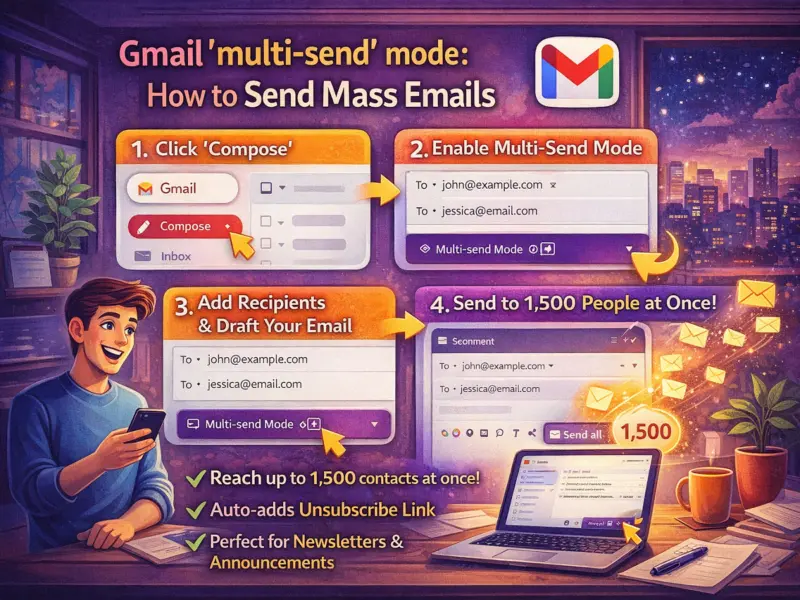
- You can send emails to up to 1,500 recipients at once
- Built-in safeguards prevent spam misuse
- Option to preview emails before sending
How to Enable Multi-Send Mode in Gmail
Follow these steps to turn on the feature:
- Open your Gmail account on a computer.
- Click on the Compose button.
- In the email draft window, locate the option 'Turn multi-send mode on/off' at the bottom toolbar.
- Click to enable Multi-Send Mode.
Once activated, you'll notice:
- The interface changes slightly (often highlighted in purple)
- The 'Send' button changes to 'Continue'
- A help banner appears in the draft
How to Send Emails to Multiple Recipients
After enabling Multi-Send Mode, follow these steps:
- Compose your email as usual.
- Add recipients (up to 1,500) in the 'To' field.
- Add one recipient in Cc or Bcc if needed.
- Click Continue after completing your draft.
- Review any warnings (e.g., missing unsubscribe link or too many recipients).
- Optionally, click Send Preview to test the email.
- Finally, click Send All to deliver your message.
Important Things to Keep in Mind
- If you remove the unsubscribe link, Gmail will prompt you to add it back
- Recipients who unsubscribe are automatically removed from future emails
- Gmail may show warnings if you exceed limits or make changes affecting compliance
These safeguards ensure your emails follow best practices and avoid spam filters.
Why Use Multi-Send Mode?
This feature is especially useful for:
- Marketing campaigns
- Newsletters
- Business announcements
- Event invitations
Instead of manually sending emails one by one, Multi-Send Mode saves time while maintaining professionalism.
Tips for Better Email Campaigns
To get the best results:
- Write clear and engaging subject lines
- Personalize content where possible
- Avoid spammy language
- Always include relevant information
- Respect unsubscribe requests
Final Takeaway
The Multi-Send feature on Gmail is a game-changer for anyone who needs to send bulk emails efficiently. It combines convenience, personalization, and compliance—making it ideal for both individuals and businesses.
If you regularly send emails to large groups, this feature can save time while improving communication quality