




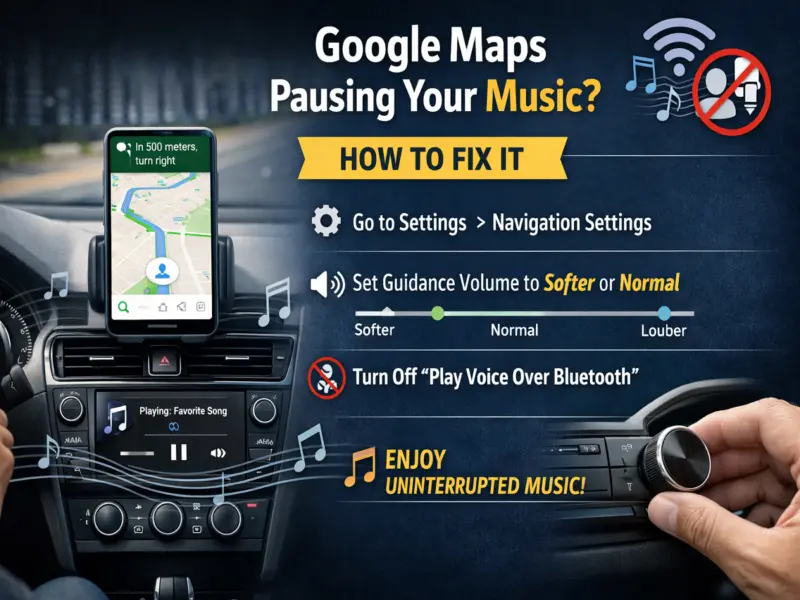

If you often use Google Maps while driving and enjoy listening to music at the same time, you may have noticed an annoying issue—your music pauses or lowers automatically whenever navigation voice instructions play.
While this feature is designed for safety, many users find it disruptive.
The good news? You can easily control or even stop this interruption with a few simple settings. Here's a complete, step-by-step guide to fix it.
Why Does Google Maps Lower or Stop Music?
By default, Google Maps prioritizes navigation instructions over media playback. This ensures that drivers clearly hear directions, especially in busy or unfamiliar routes.
However, this results in:
- Music pausing completely
- Volume dropping significantly (also known as 'audio ducking')
While useful for safety, it may not suit everyone—especially during long drives.
Step-by-Step: How to Stop Music Interruption
Follow these steps to customize the settings:
1. Open Google Maps
Launch the app on your smartphone.
2. Tap on Your Profile Icon
Located at the top-right corner of the screen.
3. Go to 'Settings'
Scroll and select the Settings option.
4. Select 'Navigation Settings'
This section controls voice and audio behavior during navigation.
5. Adjust 'Guidance Volume'
You'll see options like:
- Softer
- Normal
- Louder
Set it to 'Softer' or 'Normal' if you want minimal interruption.
Turn Off Voice Over Bluetooth (Full Fix)
If your music completely stops, try this:
- Find 'Play voice over Bluetooth'
- Toggle it OFF
This will stop voice instructions from overriding your music when connected to your car's Bluetooth system.
Check Your Car's Infotainment Settings
Sometimes, the issue isn't just with Google Maps. Your car system may also be contributing.
Look for options like:
- Audio Focus
- Navigation Ducking
If these are enabled, your car will automatically reduce music volume during navigation prompts.
Disable or adjust these settings for better control.
Pro Tip: Balance Safety and Comfort
While turning off voice guidance can improve your music experience, remember:
- Navigation alerts are important for safe driving
- Keep at least minimal guidance volume if driving in unfamiliar areas
Final Thoughts
The voice guidance feature in Google Maps is designed with safety in mind, but it doesn't have to ruin your music experience. By tweaking a few settings—like guidance volume and Bluetooth voice—you can strike the perfect balance between navigation and entertainment.
With these simple adjustments, you can enjoy uninterrupted music while still staying on track during your drive.