
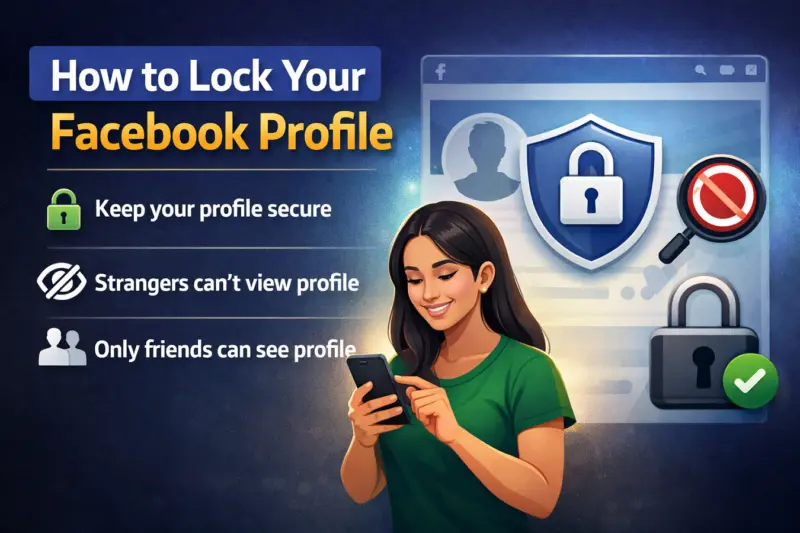

If you are looking to make your social media presence more private, locking your Facebook profile is one of the simplest and most effective steps you can take.
This feature helps you restrict what others can see, ensuring that only people on your friends list have full access to your posts, photos, and personal information.
With increasing concerns around online privacy, many users are now choosing to limit their profile visibility. Facebook's profile lock feature is designed specifically for this purpose, offering a quick way to secure your account without changing multiple privacy settings manually.
What Happens When You Lock Your Profile?
Once your profile is locked, people who are not on your friends list will only be able to view limited information. This includes:
- A restricted version of your profile
- Limited access to your timeline posts and photos
- No visibility of full-size profile and cover pictures
- Stories and new posts visible only to friends
Even posts that were previously public will automatically become visible only to your friends after locking your profile.
Can You Lock Your Profile on All Devices?
The feature is mainly available through the Facebook mobile app, especially on Android devices. However, users can also lock their profile using a browser workaround if they do not have access to the mobile app.
For iOS users, the direct option may not always be available, but the workaround method can still be used effectively.
How to Lock Facebook Profile Using Mobile App
Follow these simple steps to secure your profile through the app:
1. Open Facebook App
Launch the Facebook app on your smartphone.
2. Go to Your Profile
Tap on your profile picture to open your profile page.
3. Access Menu Options
Tap on the three-dot menu icon located next to the 'Add to Story' option.
4. Select Lock Profile
You will see a 'Lock Profile' option. Tap on it.
5. Confirm Action
A new screen will explain how the feature works. Tap on 'Lock Your Profile' to proceed.
6. Done
You will see a confirmation message indicating that your profile has been successfully locked.
How to Lock Facebook Profile Using Desktop (Workaround)
Although the desktop version does not offer a direct option, you can still lock your profile using these steps:
1. Open Facebook in Browser
Go to the official Facebook website and log in.
2. Visit Your Profile
Click on your profile icon.
3. Switch to Mobile Version
Edit the URL in your browser by replacing 'www' with 'm' (for example, m.facebook.com).
4. Access Profile Settings
Once the mobile version loads, click on the three-dot menu next to 'Edit Profile.'
5. Lock Your Profile
Select 'Lock Profile' and confirm the action.
Your profile will now be secured just like it would be through the mobile app.
How to Unlock Your Facebook Profile
If you ever want to make your profile public again, the process is just as simple:
- Go to your profile settings
- Tap on the 'Unlock Profile' option
- Confirm your choice
Once unlocked, your profile visibility will return to its previous settings.
Why You Should Consider Locking Your Profile
Locking your Facebook profile is a smart move if you want better control over your personal information. It reduces unwanted access, prevents strangers from viewing your content, and adds an extra layer of security to your account.
Final Thoughts
In today's digital world, protecting your online identity is more important than ever. The profile lock feature on Facebook offers a quick and effective way to enhance your privacy without complicated settings.
Whether you are concerned about data security or simply want to limit who sees your posts, this feature is a valuable tool that every user should consider using.