
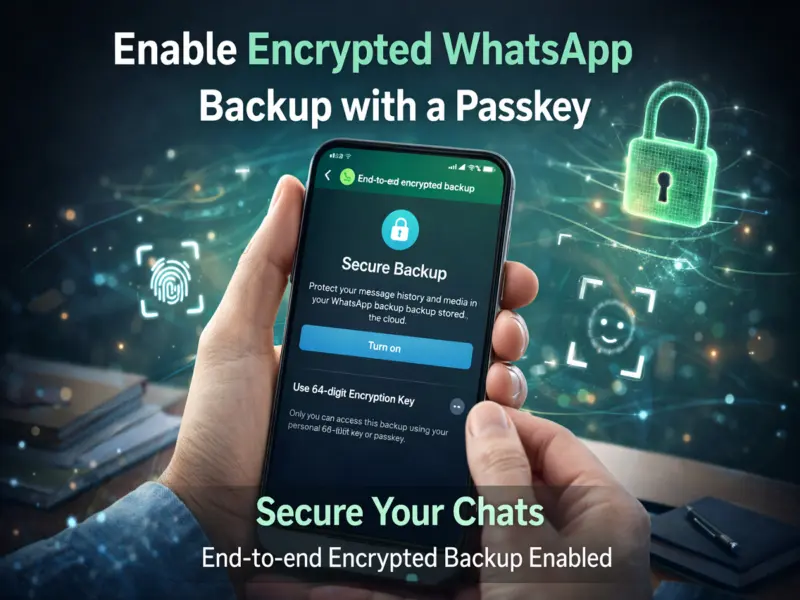

Protecting your private conversations has become more important than ever, and WhatsApp offers a powerful way to do that. With its end-to-end encrypted backup feature, users can now secure their chat backups using a passkey—ensuring that no one else, not even the company itself, can access their messages.
If you're looking to enable this feature, here's a fully reworked, easy-to-follow guide covering everything you need to know.
What Is End-to-End Encryption in WhatsApp?
End-to-end encryption is a security system that ensures messages are converted into coded data before being sent. These messages can only be decoded on the sender's and receiver's devices using a unique encryption key.
In simple terms, your chats remain completely private—even if intercepted, they appear as unreadable code to outsiders.
Why Enable Encrypted Backups?
Turning on encrypted backups adds an extra layer of protection to your stored chats. Here's why it matters:
- Your messages stay private and secure
- Prevents access by hackers or unauthorized users
- Ensures only you can restore chats using a passkey or encryption key
- Helps retain chat history safely when switching devices
However, keep in mind that if someone gains access to your unlocked device, encryption alone may not fully protect your data.
How to Enable Encrypted WhatsApp Backup on Android
Follow these steps:
- Open WhatsApp on your phone
- Go to Settings → Chats → Chat Backup
- Tap on End-to-End Encrypted Backup
- Select Turn On
- Create a passkey (or use a 64-digit encryption key)
- Follow on-screen instructions to complete setup
Your chats will now start backing up securely.
How to Enable Encrypted Backup on iPhone
For iOS users:
- Open WhatsApp
- Go to your Profile → Chats → Chat Backup
- Tap Back Up Now
- Select End-to-End Encrypted Backup
- Turn it on and create a passkey
- Complete the setup process
Make sure your device is running a compatible iOS version for this feature.
What Are Passkeys and Why Are They Important?
Passkeys act as a secure authentication layer on top of encryption. You can use:
- Device PIN or password
- Fingerprint
- Face unlock
This ensures only you can access your encrypted backups, adding an extra shield of security.
Things to Keep in Mind
- Feature requires Android 9+ or newer and updated iOS versions
- Losing your passkey means you may not recover your backup
- No third party, including Meta, can access encrypted backups
Final Takeaway
The encrypted backup feature on WhatsApp is a major step toward stronger privacy. By enabling it with a passkey, you ensure your chats remain safe—even when stored in the cloud.
In a world where data security is crucial, taking a few minutes to activate this feature can go a long way in protecting your personal conversations.