




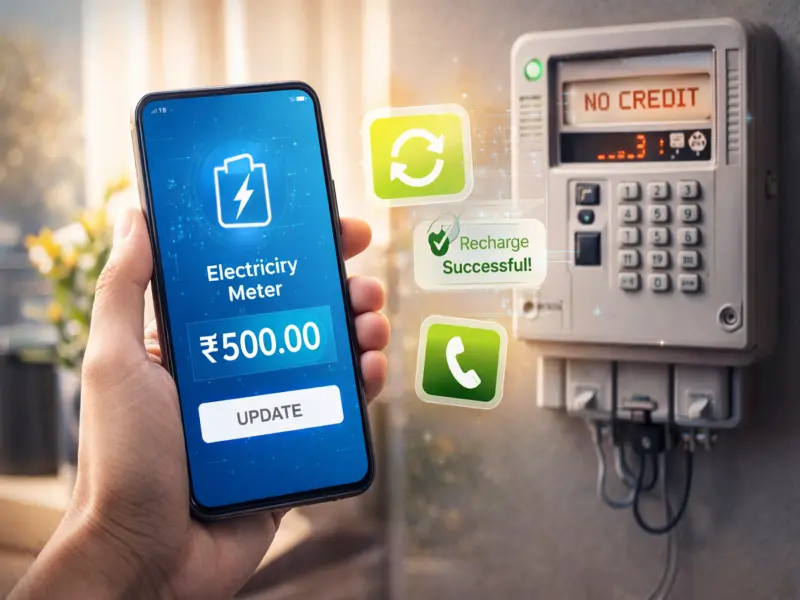

In today's digital era, prepaid electricity meters have made bill payments quick and hassle-free. With just a few taps on your phone, you can recharge your electricity just like a mobile number.
However, many users face a frustrating problem-even after successful recharge, the meter still shows zero balance.
If this has happened to you, don't panic. This is a common issue and can usually be resolved within minutes using simple steps on your phone. Here's a complete guide to understand why it happens and how to fix it instantly.
⚡ Why Is Your Meter Showing Zero Balance After Recharge?
There are several reasons why your prepaid meter may not update immediately after payment:
- Delay in server update due to network or system issues
- Token or recharge code not synced properly
- Temporary connectivity issue between meter and system
- Incorrect recharge details entered during payment
In most cases, the recharge is successful, but the meter fails to reflect it instantly.
Quick Fix: Update Your Meter from Mobile
The good news is-you can fix this issue without visiting any office. Just follow these steps:
✅ Step 1: Check Recharge Status
- Open your electricity provider's app or payment platform
- Confirm that the recharge was successful
- Note down the transaction ID or recharge token
Step 2: Enter Token Manually (If Applicable)
- Some prepaid meters require a token number
- Enter the token using your meter keypad
- Press the "Enter" or "OK" button
This often updates the balance immediately.
Step 3: Use Official App or Website
- Open your electricity board's official mobile app or website
- Look for options like "Sync Meter", "Update Balance", or "Refresh Status"
- Tap on it to manually update your meter
Step 4: Restart the Meter (If Safe)
- Turn off the main power supply for a few seconds
- Switch it back on
Sometimes a simple reset helps the meter reconnect and update the balance.
☎️ Step 5: Contact Customer Support
- If the issue persists, call your electricity provider's official helpline
- Share your consumer number and transaction details
- They can push the update from their system
⚠️ Important Tips to Avoid This Issue
- Always recharge through official apps or trusted platforms
- Double-check your consumer number or meter ID
- Keep a screenshot of the payment confirmation
- Avoid multiple recharges if the balance doesn't update immediately