
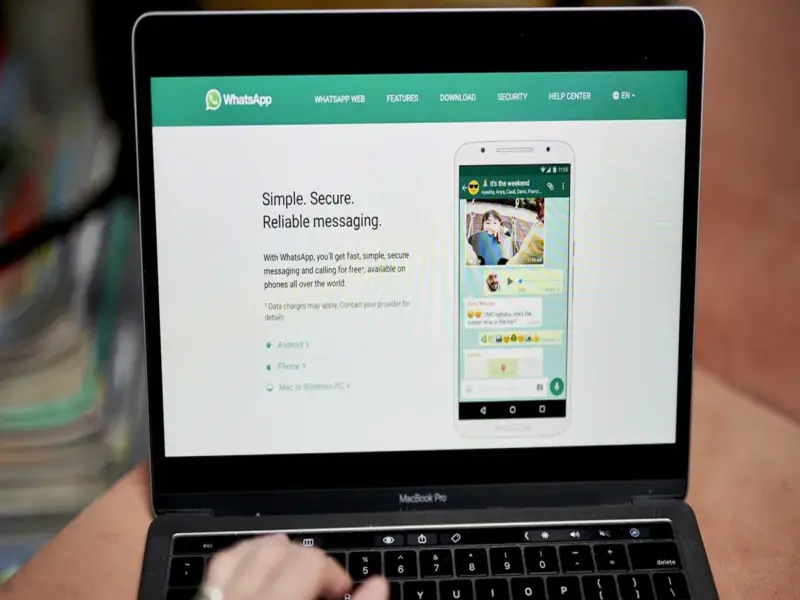

Sometimes it happens that you're busy with something important and your phone is on silent. Your boss keeps messaging you, but because you're busy working on your laptop, you don't even notice the messages.
People who spend their entire day working on their laptops often keep their WhatsApp logins on the system. Groups are created on WhatsApp for everything from personal to office work, making it easy to connect. If you don't log in, you'll have to check your phone repeatedly. The biggest problem is that if you don't have a WhatsApp login, you'll miss many important messages. Repeatedly checking your phone not only wastes time but also distracts you from your work. However, people often struggle to log in to their WhatsApp on their laptops. Despite repeated attempts, the login fails. If this is happening to you, don't worry. In today's article, we'll share important tips for logging in.
Update or change your browser
Outdated browsers often cause problems with opening WhatsApp. If you're unable to log in even after repeatedly restarting it, the problem may be with your browser. You can use the latest browsers like Google Chrome, Mozilla Firefox, or Microsoft Edge. If you're unable to log in to WhatsApp on one of these, try turning it on in another. It should probably work on one of them.
Clear Cache and Cookies
Another good way to log in to WhatsApp is to clear the cache and cookies in the system. After this, log out of WhatsApp and then log back in. This may get it working properly again. Knowing the WhatsApp hacks will make things easier.
First, check your internet connection
Sometimes the internet isn't working properly, which is why WhatsApp won't turn on. Both your phone and laptop must have a working internet connection before you can log in. If you can't log in via Wi-Fi, try connecting your phone's internet and logging in to WhatsApp. Sometimes this will log you in to WhatsApp.
Refresh WhatsApp Web
Sometimes this happens because the page is hanging. Therefore, you should close the various sites open on the system and refresh the WhatsApp Web page. You can also press Ctrl + R. This process can often log you into WhatsApp. If this doesn't work, log out of all devices on your phone and scan the WhatsApp QR code again.
Image credit- freepik,