
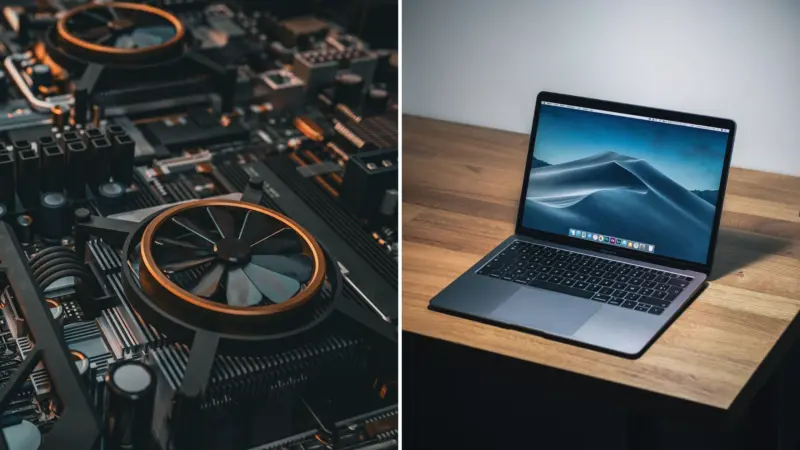

It's common to find that your computer is operating slower than you initially purchased after using it for some time. As a result of everything you do on your computer—download files, surf the web, uninstall programs, leave open apps, and pretty much do anything else—it slowly collects junk.
It creates issues that aren't necessarily immediately apparent. Continue reading the blog to learn about best ways to speed up your computer.
It's common to find that your computer is operating slower than you initially purchased after using it for some time. As a result of everything you do on your computer—download files, surf the web, uninstall programs, leave open apps, and pretty much do anything else—it slowly collects junk. It creates issues that aren't necessarily immediately apparent. Continue reading the blog to learn about best ways to speed up your computer.File fragmentation is a big culprit. So are the buildup of browser cache files, a disorganised desktop, an overfull hard drive, sluggish hardware, and several other problems. Thankfully, you can do a few things to speed up your computer and restore its initial state.
File fragmentation is a big culprit. So are the buildup of browser cache files, a disorganised desktop, an overfull hard drive, sluggish hardware, and several other problems. Thankfully, you can do a few things to speed up your computer and restore its initial state. 1. Optimise Your Hard DriveCombining all of the empty spaces you make in the file system structure when you add and remove files is what it means to defrag your hard drive. Your hard drive will operate more slowly due to these empty areas, which will slow the opening of files, directories, and programmes. Several free defragment tools are available, but you may also use the one with Windows.
Combining all of the empty spaces you make in the file system structure when you add and remove files is what it means to defrag your hard drive. Your hard drive will operate more slowly due to these empty areas, which will slow the opening of files, directories, and programmes. Several free defragment tools are available, but you may also use the one with Windows.2. Get Rid Of Malware, Spyware, Viruses, Adware, Etc.Malware can damage any Windows machine, but your chances of getting attacked are reduced if you use anti-malware software regularly. Upon entering the computer, the virus often stores itself in the system memory, causing it to operate slowly. Even more reasons to delete them are the harmful programs that display pop-ups or lure you into purchasing their 'antivirus programme.' It's advisable to regularly check your computer for viruses to eliminate these bothersome memory wasters.
Malware can damage any Windows machine, but your chances of getting attacked are reduced if you use anti-malware software regularly. Upon entering the computer, the virus often stores itself in the system memory, causing it to operate slowly. Even more reasons to delete them are the harmful programs that display pop-ups or lure you into purchasing their 'antivirus programme.' It's advisable to regularly check your computer for viruses to eliminate these bothersome memory wasters.Also Checkout - 5 Popular Tech Products That Were Discontinued In 2022
3. Resolve Windows System IssuesErrors in the Windows system files can be caused by several factors, including installing and uninstalling programs, updating Windows, causing an abrupt computer shutdown, and rebooting your system while an update is running. These problems can stop software installations and upgrades from happening, make things freeze up, and make it difficult to operate a computer smoothly. Utilise a programme such as SFC or Scannow to fix your system files.
Errors in the Windows system files can be caused by several factors, including installing and uninstalling programs, updating Windows, causing an abrupt computer shutdown, and rebooting your system while an update is running. These problems can stop software installations and upgrades from happening, make things freeze up, and make it difficult to operate a computer smoothly. Utilise a programme such as SFC or Scannow to fix your system files.4. Modify The Visual EffectsWindows offers many captivating visual features, such as fading menus and animated windows. In general, it's okay to have these features enabled, but only if your system's memory is sufficient will they be beneficial. You can disable these visual effects to make things go a little faster.
Windows offers many captivating visual features, such as fading menus and animated windows. In general, it's okay to have these features enabled, but only if your system's memory is sufficient will they be beneficial. You can disable these visual effects to make things go a little faster.5. Organise, Change, Or Improve Your HardwareYou can only solve software issues to a certain extent before dealing with hardware issues. Software issues are the root cause of many slow computers. For instance, you could have a low quantity of RAM or an out-of-date or malfunctioning video card if your computer won't allow you to run more than a few apps at once or play HD movies. It might be possible that your hardware is unclean.
You can only solve software issues to a certain extent before dealing with hardware issues. Software issues are the root cause of many slow computers. For instance, you could have a low quantity of RAM or an out-of-date or malfunctioning video card if your computer won't allow you to run more than a few apps at once or play HD movies. It might be possible that your hardware is unclean.It's a good idea to regularly clean your hardware parts. Fans and other components beneath the casing may accumulate hair or dirt clumps over time, mainly due to specific environmental factors. This causes the components to have to work harder just to operate correctly. Before you purchase new hardware, make sure everything is clean. It's conceivable that they are just too dirty.
To examine your hardware specifications, utilise a free system information tool. These tools are handy to replace some hardware and avoid opening your computer to check on things. For instance, you may use a system information tool to verify the sort and quantity of RAM you now have so you can purchase the appropriate amount if you wish to increase it.
To examine your hardware specifications, utilise a free system information tool. These tools are handy to replace some hardware and avoid opening your computer to check on things. For instance, you may use a system information tool to verify the sort and quantity of RAM you now have so you can purchase the appropriate amount if you wish to increase it.6. Complete Windows Operating System ReinstallationRemoving all software and data from your computer, along with the whole Windows operating system, is the most severe way to speed it up. This may be accomplished with a fresh Windows installation.
Removing all software and data from your computer, along with the whole Windows operating system, is the most severe way to speed it up. This may be accomplished with a fresh Windows installation.The best part about doing this is that it's like having a brand new computer, free of years' worth of program modifications, registry problems, and changes you were unaware of. This is one of the final things you can do to speed up your computer, so you should seriously think before proceeding.
The best part about doing this is that it's like having a brand new computer, free of years' worth of program modifications, registry problems, and changes you were unaware of. This is one of the final things you can do to speed up your computer, so you should seriously think before proceeding.7. Clear Out Programs And Junk FilesEliminating unnecessary files, applications, and other 'junk' is a practical method for speeding up any computer.
Eliminating unnecessary files, applications, and other 'junk' is a practical method for speeding up any computer.So, these are the ways to speed up your computer. Removing unnecessary files, applications, and other 'junk' is a practical method for accelerating laptops. You should have more free hard disc space for significant items after your computer removes unnecessary temporary and junk files. Performance is also improved by the hard drive's more free space.
So, these are the ways to speed up your computer. Removing unnecessary files, applications, and other 'junk' is a practical method for accelerating laptops. You should have more free hard disc space for significant items after your computer removes unnecessary temporary and junk files. Performance is also improved by the hard drive's more free space.CHECKOUT - 6 Tips to Protect Your Smartphone from Getting Hacked