


Are you facing an issue where you have typed the wrong passcode many times and your iPhone is showing the "iPhone Unavailable Try Again Later" message?
This is a common iPhone issue for many users, and the worst situation is that you forgot iPhone passcode and locked out of your iPhone. Here are four easy methods that will help you get back in. Some methods require a password or Apple ID, some do not. In this tutorial, you will understand what iPhone unavailable is and how to fix iPhone unavailable step by step.
What Does "iPhone Unavailable" Mean?
The iPhone Unavailable message appears when you enter too many incorrect passcodes on the lock screen. It's part of Apple's integrated security feature to keep your information safe from hackers.
After several unsuccessful attempts, your device temporarily prevents you from using it. If wrong attempts still continue, the time of lockout is extended or the phone is disabled permanently with iPhone unavailable no timer.
This occurs frequently when:
- You forgot iPhone password
- Wrong passwords are typed by others who are trying to unlock your phone
- Face ID or Touch ID does not work for several times
- It's been a long time since you last used your passcode
- The iPhone entered a number of wrong passwords accidentally in a pocket or bag
- Anomalous system update or restoration
Knowing the reason would enable you to select the best way to fix it.
How to Bypass "iPhone Unavailable" Screen
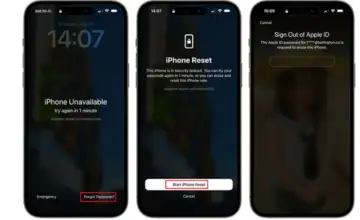
Method 1: Unlock iPhone with "Erase iPhone" Option
If you are running iOS 15.2 or later versions, you can reset your iPhone straight from your device easily bypass iPhone unavailable. This method requires your Apple ID password and your device connected to the internet. This option erases your phone along with screen passcode so you can set it up as new phone.
Steps:
- Enter wrong passcode until you see the Erase iPhone or Forgot Passcode option at bottom of the screen. Tap it.
- Click on Start iPhone Reset.
- Type your Apple ID password to sign out of your account.
- Wait for your device to completely erase data and restart.
When complete you can setup your iPhone as new or restore from backup.
Method 2: Fix iPhone Unavailable using iCloud
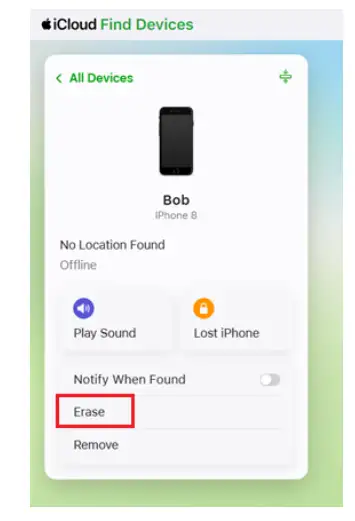
Another way to remove iPhone unavailable screen is to remotely erase your device from iCloud if Find My iPhone is enabled on your iPhone. This way is ideal if you don't have access to a computer or need to bypass iPhone unavailable remotely. Once done it'll remove screen lock and fix iPhone unavailable screen by restoring iPhone back to factory settings.
Steps:
- Open icloud.com from your web browser and sign in using your Apple ID.
- Click on "Find My iPhone"
- Select your locked iPhone from all devices.
- Click Erase and follow instructions.
- Wait for it to finish then your phone will reboot itself and allow you to setup.
Method 3: Restore iPhone with iTunes/Finder
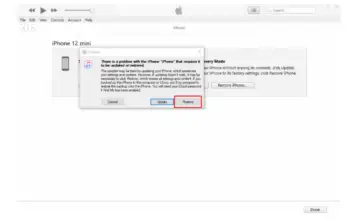
Restoring an iPhone via a computer is an effective way when you come across iPhone Unavailable screen. It erases the iOS and then reinstalls the iOS as well as removes the passcode. This approach is the best if you have a PC or if you prefer to use recovery mode.
Steps:
- Connect your iPhone to a macOS or Windows computer using a USB cable. Launch iTunes or Finder.
- Put your iPhone in Recovery Mode.
- For iPhone 8 and later: Click Volume Up, then Volume Down, and now press and hold the Side key until you see the "Connect to computer" screen.
- For iPhone 7/7 Plus: Hold down the Volume Down and Power/Lock keys for a moment until you see the "Connect to computer" screen.
- For iPhone 6s and earlier: Hold down the Home and Power keys together until the "Connect to computer" screen pops up.
- When iTunes/Finder pops up, click Restore.
- Let the system reinstall iOS and proceed with the setup.
This process deletes all data on your device, but is effective for getting around lock screen problems.
Method 4: Unlock iPhone via TunesKit iPhone Unlocker (Best Effective Solution)
When nothing else works, particularly if you don't remember your passcode and Apple ID, it's time to consider using an unlocking tool. TunesKit iPhone Unlocker can unlock different kinds of iOS locks quickly and effortlessly without any complicated steps. It is ideal for people who want a simple, reliable, all-in-one solution without any guesswork or involvement of Apple ID accounts to fix iPhone unavailable.
Key Features:
- Bypass a variety of iOS locks (screen passcode, Apple ID, MDM lock and activation lock) without passcode
- Supports multiple lock situations iPhone unavailable, iPhone is disabled, unlock iPhone with broken screen.
- Works well with the latest iOS and iPhone models.
- Simple and easy-to-use interface with step-by-step instructions
- Fast unlock process and high success rate
How to Fix iPhone Unavailable with TunesKit iPhone Unlocker:
1. After downloading and installing TunesKit iPhone Unlocker on your PC, run it and connect your iPhone to the PC with a USB cord.
2. Select the Unlock iOS Screen option and go on to put your device in Recovery Mode or DFU Mode.
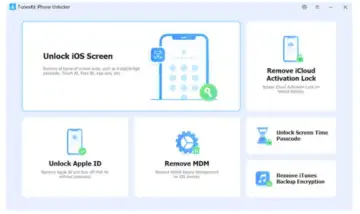
3. Verify your device information and download the corresponding firmware package.
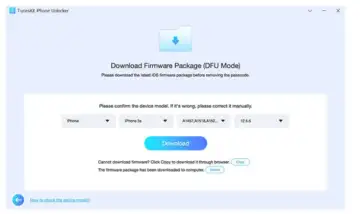
4. Click Unlock to start removing the lock screen wait for iPhone to restart normally.
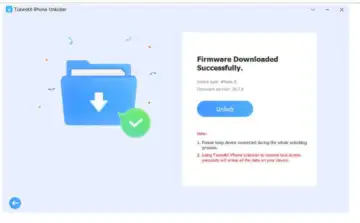
FAQ
1. How long does an iPhone unavailable last?
It depends on the number of failed attempts. At first, it may be locked for several minutes. The lockout time increases with the number of unsuccessful attempts. After too many attempts, the device goes into permanent unavailable until it's erased.
2. Is there a way to fix iPhone unavailable without data loss?
In general, no. Apple's security scheme means that you have to erase the device to remove the lock. However, if you have a prior backup on iCloud or iTunes, you can recover your data after you unlock the device.
3. What if I forgot both passcode and Apple ID?
This means you aren't really left with a lot of options. In scenarios like this, TunesKit iPhone Unlocker can be the best solution for you to get access to your iOS device again.
Conclusion
An iPhone Unavailable message doesn't mean that your iPhone is disabled forever. You just need to apply the proper method to get back in. Whether it is using Apple's own options, including erase iPhone, iCloud, and recovery mode, or other solutions, depending on your circumstances, each of these ways can help you remove the lock quickly. For a more streamlined and hassle-free experience, tools like TunesKit iPhone Unlocker provide a faster option. Keep in mind to be careful, follow the right steps, and have your data always backed up so as not to cause issues down the road.